Android Plataforma - Part 7: Decorating the 'app' module
By Rodrigo Sicarelli 8 min read Updated
In the previous article, we got our platform ready to take on new features.
In this edition, the first feature we’ll add is decorating the ‘app’ module.
Our goal is to bring all of the android extension’s Gradle configuration inside our plugin.
android {
    namespace = "com.rsicarelli.kplatform"
    compileSdk = 34

    defaultConfig {
        applicationId = "com.rsicarelli.kplatform"
        minSdk = 24
        targetSdk = 34
        versionCode = 1
        versionName = "1.0"

        testInstrumentationRunner = "androidx.test.runner.AndroidJUnitRunner"
        vectorDrawables {
            useSupportLibrary = true
        }
    }

    buildTypes {
        release {
            isMinifyEnabled = false
            proguardFiles(getDefaultProguardFile("proguard-android-optimize.txt"), "proguard-rules.pro")
        }
    }
    compileOptions {
        sourceCompatibility = JavaVersion.VERSION_17
        targetCompatibility = JavaVersion.VERSION_17
    }
    kotlinOptions {
        jvmTarget = "17"
    }
    buildFeatures {
        compose = true
    }
    composeOptions {
        kotlinCompilerExtensionVersion = libs.versions.composeKotlinCompilerExtension.get()
    }
    packaging {
        resources {
            excludes += "/META-INF/{AL2.0,LGPL2.1}"
        }
    }
}
Options
We have three options for extracting this configuration. We’ll go with the last approach, but I think it’s worth presenting all of them so we can see there are several ways to reach the same goal.
Option 1: using the kotlin-dsl-precompiled-script-plugins plugin
This plugin can be applied in our build-logic/build.gradle.kts, where we can add custom scripts, for example kplatform-android-app-build.gradle.kts.
Once you sync, a plugin named kplatform-android-app becomes available to be applied.
I’m not a fan of this method, because:
- Each script acts as a new plugin. As the project grows, it becomes a nightmare to remember all the ids; in my experience it’s a bit annoying to scale (but doable).
- Our
libraryandappapply a lot of similar configuration. With this approach, it’s hard to reuse functions and utilities across them, forcing us to copy and paste configuration. - If we publish our platform to Maven, each of these precompiled plugins becomes an artifact. That’s not a problem if you only plan to develop for the internal project, but if you ever consider extracting your platform into another repository, setting up those Maven coordinates is challenging.
Option 2: creating a dedicated plugin for each script
Just as we have our KPlatformPlugin, we could create a dedicated plugin for each script we want to reuse. Something like this:
class AndroidAppPlugin : Plugin<Project> {
    override fun apply(project: Project) {
       ..
    }
}
// build-logic/build.gradle.kts
gradlePlugin {
val androidApp by plugins.creating {
id = "com.rsicarelli.kplatform.android.app"
implementationClass = "com.rsicarelli.AndroidAppPlugin"
}
}This option is perfectly valid, but it has two big downsides:
- Just like the previous option, we’d register several plugins on the project’s classpath, which can be confusing and annoying to scale.
- Just like the previous option, each of these plugins becomes a new artifact on Maven, which can turn into a headache to get fully right.
Option 3: use the ‘decoration’ pattern
I first saw this approach in this repository: arkivanov/gradle-setup-plugin and I loved it.
Basically, instead of having several plugins, we have just one, the root one: KPlatformPlugin.
The trick, though, is that we build our plugins using Kotlin extension functions, for example:
class KPlatformPlugin : Plugin<Project> {
    // Our plugin does literally nothing. It only serves as an entry point for our decorations
    override fun apply(project: Project) = Unit
}


fun Project.androidApp() { ... }
Notice that our plugin only serves as an entry point, and the apply function returns Unit.
The magic is that these functions can be imported like any regular function in our build.gradle.kts files, making our code leaner and avoiding the boilerplate of remembering and applying several different plugins all over the place.
For me, this approach is the most scalable one, because it solves every problem raised by the previous solutions:
- Sharing scripts across plugins is super straightforward.
- We’ll expose only 1 plugin. We can apply that plugin at the root and never worry about applying it in the other modules again.
- By exposing only 1 plugin, our Maven dependencies stay super simple.
Decoration?
This is a term I coined, and it’s not necessarily an established pattern (since I’ve noticed there isn’t a standard one, heh). Even though we aren’t following the decorator pattern to the letter, I believe this terminology helps us understand that we are, in fact, decorating our modules with predefined functions.
Decorating our ‘app’ module
Now that we understand all the available options, let’s get on with the main goal of this post.
Step by step
1 - We need access to the Android and Kotlin plugins as dependencies of our build-logic/build.gradle.kts.
First, head over to libs.versions.toml and add the declarations:
[libraries]
...
androidx-activity-compose = { module = "androidx.activity:activity-compose", version.ref = "androidxComposeActivity" }

# Add the Android and Kotlin plugins so they can be included as dependencies
gradlePlugin-android = { module = "com.android.tools.build:gradle", version.ref = "androidBuildTools" }
gradlePlugin-kotlin = { module = "org.jetbrains.kotlin:kotlin-gradle-plugin", version.ref = "kotlin" }
2 - Sync the project. Now, head over to build-logic/build.gradle.kts and add these two dependencies:
plugins {
    `kotlin-dsl`
}

dependencies {
    compileOnly(libs.gradlePlugin.android)
    compileOnly(libs.gradlePlugin.kotlin)
}
..
Note that we’re using
compileOnly. This makes sure that, when our platform is imported, we won’t be pulling those plugins in as transitive dependencies of the project. This is especially important if you decide to export your platform to a separate repository and expose it via Maven.
Make sure to declare the Google repository inside build-logic/settings.gradle.kts:
dependencyResolutionManagement {
    repositories {
        google()
        mavenCentral()
    }
    ..
}
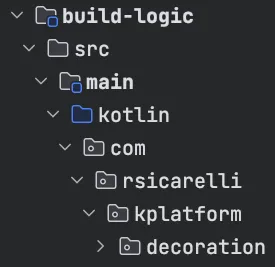
3 - Sync the project. Create a folder called decoration inside build-logic/src/main/kotlin.
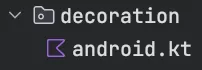
4 - Create a file called android.kt. This is where our Android decorations will live.
5 - We’ll use the internal fun applyX() pattern. Note that, by making it internal, we’re protecting this function from whoever consumes our platform:
package com.rsicarelli.kplatform.decoration

import org.gradle.api.Project

internal fun Project.applyAndroidApp() {
   ...
}
6 - To manipulate the Android extension, we’ll have to use the Project.extensions.configure<ApplicationExtension>() property:
This is the same as using android {} directly in build.gradle.kts.
import com.android.build.api.dsl.ApplicationExtension
import org.gradle.api.Project
import org.gradle.kotlin.dsl.configure

internal fun Project.applyAndroidApp() {
    extensions.configure<ApplicationExtension> {

    }
}
Check your imports! The
configurefunction sometimes isn’t imported automatically. When in doubt, copy and paste the import manually.
7 - Inside this block, copy and paste the content:
import com.android.build.api.dsl.ApplicationExtension
import org.gradle.api.JavaVersion
import org.gradle.api.Project
import org.gradle.kotlin.dsl.configure

internal fun Project.applyAndroidApp() {
    extensions.configure<ApplicationExtension> {
        namespace = "com.rsicarelli.kplatform"
        compileSdk = 34

        defaultConfig {
            applicationId = "com.rsicarelli.kplatform"
            minSdk = 24
            targetSdk = 34
            versionCode = 1
            versionName = "1.0"

            testInstrumentationRunner = "androidx.test.runner.AndroidJUnitRunner"
            vectorDrawables {
                useSupportLibrary = true
            }
        }

        buildTypes {
            release {
                isMinifyEnabled = false
                proguardFiles(getDefaultProguardFile("proguard-android-optimize.txt"), "proguard-rules.pro")
            }
        }
        compileOptions {
            sourceCompatibility = JavaVersion.VERSION_17
            targetCompatibility = JavaVersion.VERSION_17
        }
//        kotlinOptions {
//            jvmTarget = "17"
//        }
        buildFeatures {
            compose = true
        }
//        composeOptions {
//            kotlinCompilerExtensionVersion = libs.versions.composeKotlinCompilerExtension.get()
//        }
        packaging {
            resources {
                excludes += "/META-INF/{AL2.0,LGPL2.1}"
            }
        }
    }
}
8 - Notice that kotlinOptions and libs.versions.composeKotlinCompilerExtension.get() won’t work.
To configure kotlinOptions, we need to configure the KotlinCompile task.
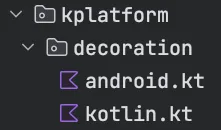
Create another folder inside decoration and, for now, call it kotlin.kt.
Using the same internal fun applyX() pattern:
import org.gradle.api.Project
import org.gradle.kotlin.dsl.withType
import org.jetbrains.kotlin.gradle.tasks.KotlinCompile

internal fun Project.applyKotlinOptions() {
    tasks.withType<KotlinCompile>().configureEach {
        kotlinOptions {
            jvmTarget = "17"
        }
    }
}
9 - Go back to applyAndroidApp() and replace the kotlinOptions comment with applyKotlinOptions():
..
compileOptions {
    sourceCompatibility = JavaVersion.VERSION_17
    targetCompatibility = JavaVersion.VERSION_17
}

applyKotlinOptions()

buildFeatures {
    compose = true
}
..
10 - One of the limitations of composite builds is that we don’t have access to the libs accessor that was generated inside the Kotlin DSL.
For now, we’ll need to create some utilities to make it possible to use our catalog’s versions inside the scripts.
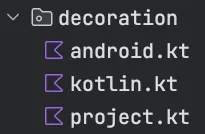
Create another file inside decoration called project.kt.
Add two extensions: one to grab libs, and another to find the version:
internal val Project.libs: VersionCatalog
    get() = extensions.getByType<VersionCatalogsExtension>().named("libs")

internal fun VersionCatalog.version(name: String): String = findVersion(name).get().toString()
11 - Go back to applyAndroidApp() and uncomment the part where we set the Compose compiler version:
buildFeatures {
    compose = true
}

composeOptions {
    kotlinCompilerExtensionVersion = libs.version("composeKotlinCompilerExtension")
}
The version name needs to match the name of the version declared in
libs.versions.toml.
12 - Check the final implementation and make sure everything is right:
import com.android.build.api.dsl.ApplicationExtension
import org.gradle.api.JavaVersion
import org.gradle.api.Project
import org.gradle.kotlin.dsl.configure

internal fun Project.applyAndroidApp() {
    extensions.configure<ApplicationExtension> {
        namespace = "com.rsicarelli.kplatform"
        compileSdk = 34

        defaultConfig {
            applicationId = "com.rsicarelli.kplatform"
            minSdk = 24
            targetSdk = 34
            versionCode = 1
            versionName = "1.0"

            testInstrumentationRunner = "androidx.test.runner.AndroidJUnitRunner"
            vectorDrawables {
                useSupportLibrary = true
            }
        }

        buildTypes {
            release {
                isMinifyEnabled = false
                proguardFiles(getDefaultProguardFile("proguard-android-optimize.txt"), "proguard-rules.pro")
            }
        }
        compileOptions {
            sourceCompatibility = JavaVersion.VERSION_17
            targetCompatibility = JavaVersion.VERSION_17
        }

        applyKotlinOptions()

        buildFeatures {
            compose = true
        }

        composeOptions {
            kotlinCompilerExtensionVersion = libs.version("composeKotlinCompilerExtension")
        }

        packaging {
            resources {
                excludes += "/META-INF/{AL2.0,LGPL2.1}"
            }
        }
    }
}
13 - Now it’s time to expose our script to the outside world.
To do that, head over to the KPlatformPlugin.kt file and add a new function called fun androidApp():
import com.rsicarelli.kplatform.decoration.applyAndroidApp
import org.gradle.api.Plugin
import org.gradle.api.Project

class KplatformPlugin : Plugin<Project> {

    override fun apply(project: Project) = Unit
}

fun Project.androidApp() = applyAndroidApp()
14 - Sync the project. Head over to app/build.gradle.kts, remove the entire android {} block, and use the function we just created:
import com.rsicarelli.kplatform.androidApp

plugins {
    id(libs.plugins.android.application.get().pluginId)
    kotlin("android")
}

androidApp()

dependencies {
    implementation(libs.androidx.core.ktx)
    implementation(libs.androidx.lifecycle.runtime.ktx)
    implementation(libs.androidx.activity.compose)
    implementation(projects.core.designsystem)
    implementation(projects.features.home)
}
If you run into problems, make sure our plugin is being applied in the root
build.gradle.kts.
plugins {
    alias(libs.plugins.android.application) apply false
    alias(libs.plugins.kotlin.android) apply false
    id(libs.plugins.rsicarelli.kplatform.get().pluginId)
}
Success!
You should be able to run the app normally on a device/emulator.
Congratulations! We just made our lives a whole lot easier. With this alone, we could even create another module in this project, demoApp for example (we won’t), and reuse all of this configuration.
Next goal: do the same with our configuration for the Android library!